Your day.
Before you
unlock.

Your calendar, your Apple Reminders, and something to look forward to. Calpaper puts your day on your iPhone Lock Screen, fresh every morning.

Download on the App Store

Free to download. Calpaper Pro is one purchase.
iOS 18 or later · No subscription · No account

Open setup guide
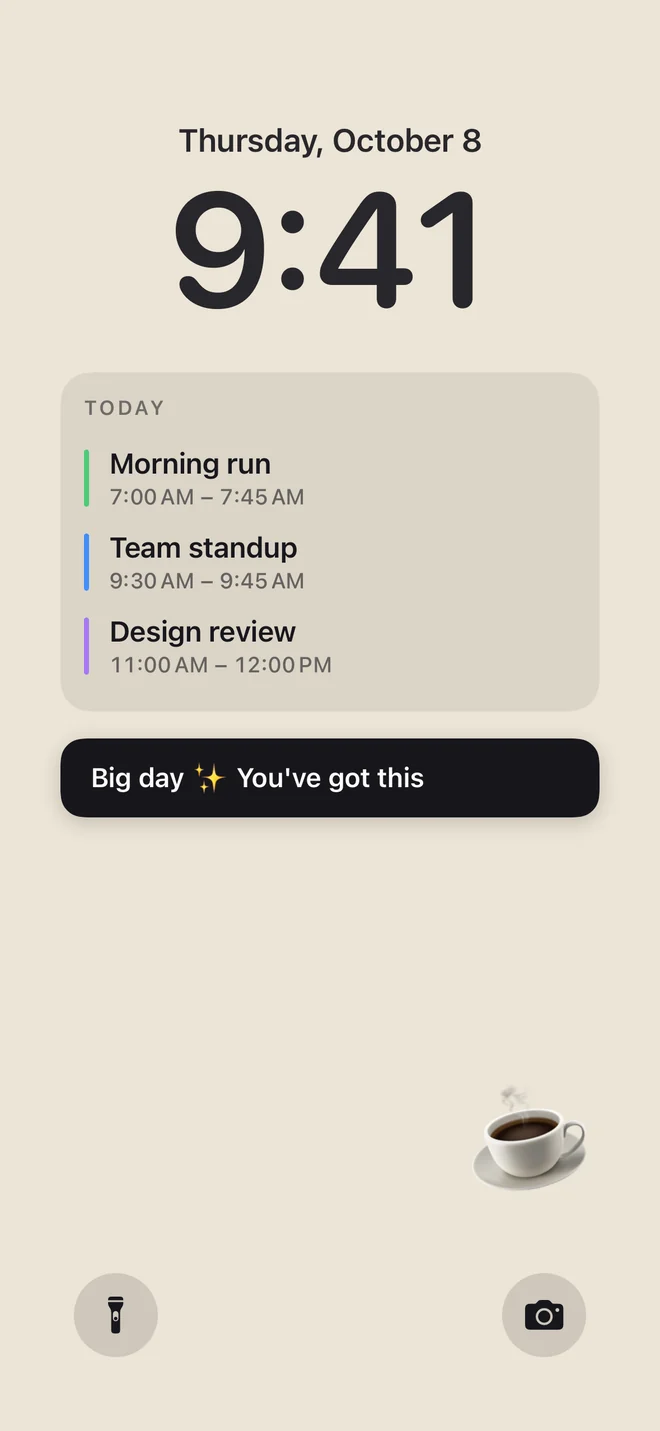
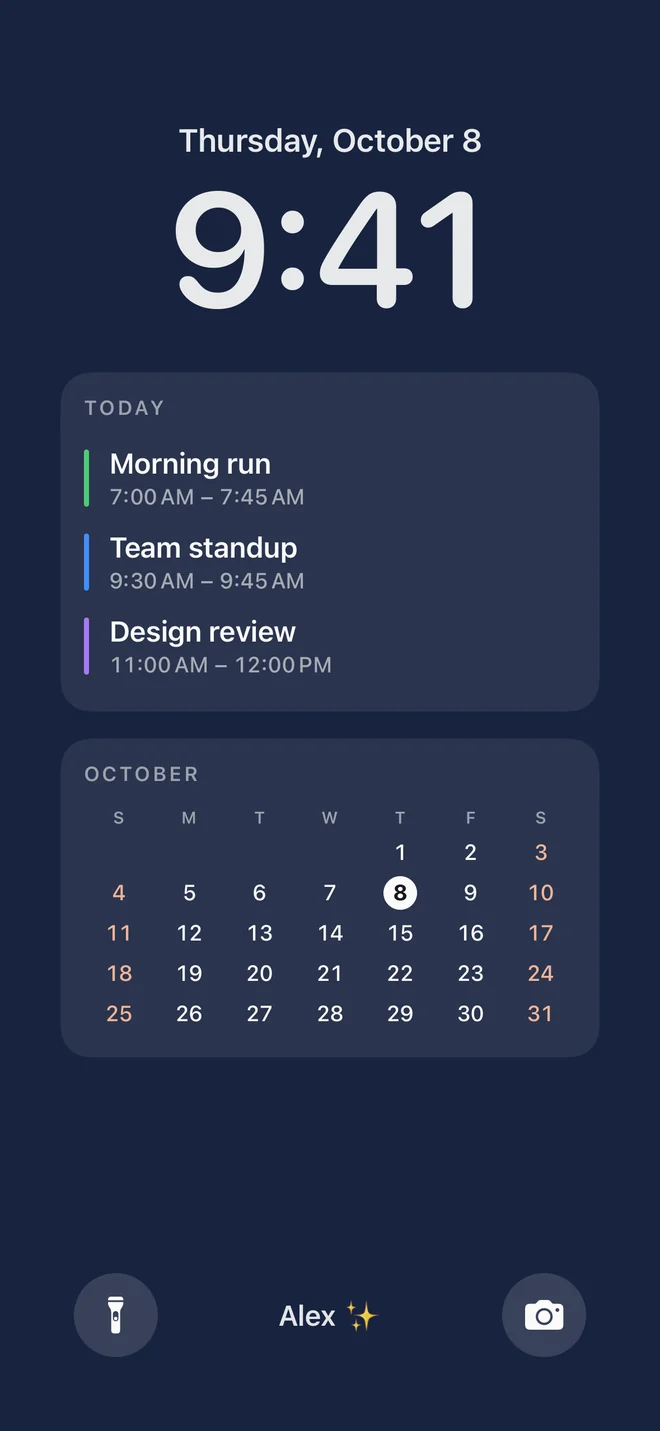
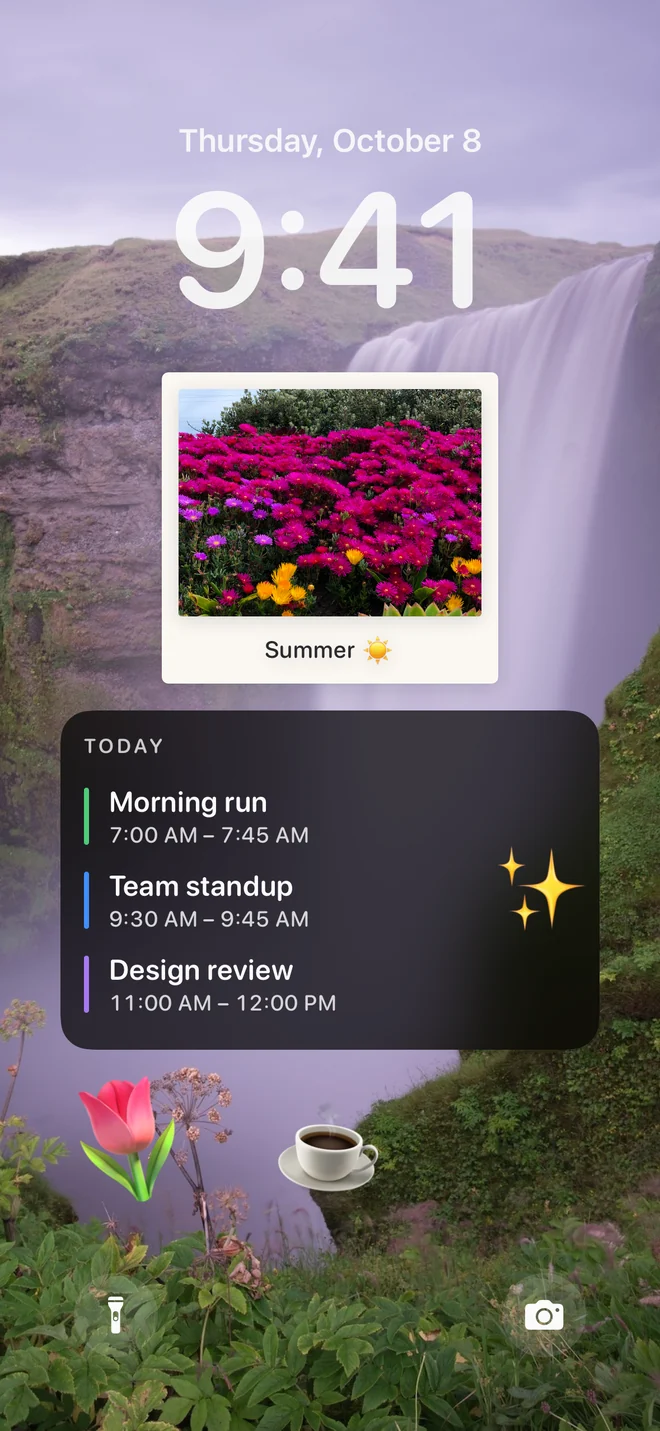
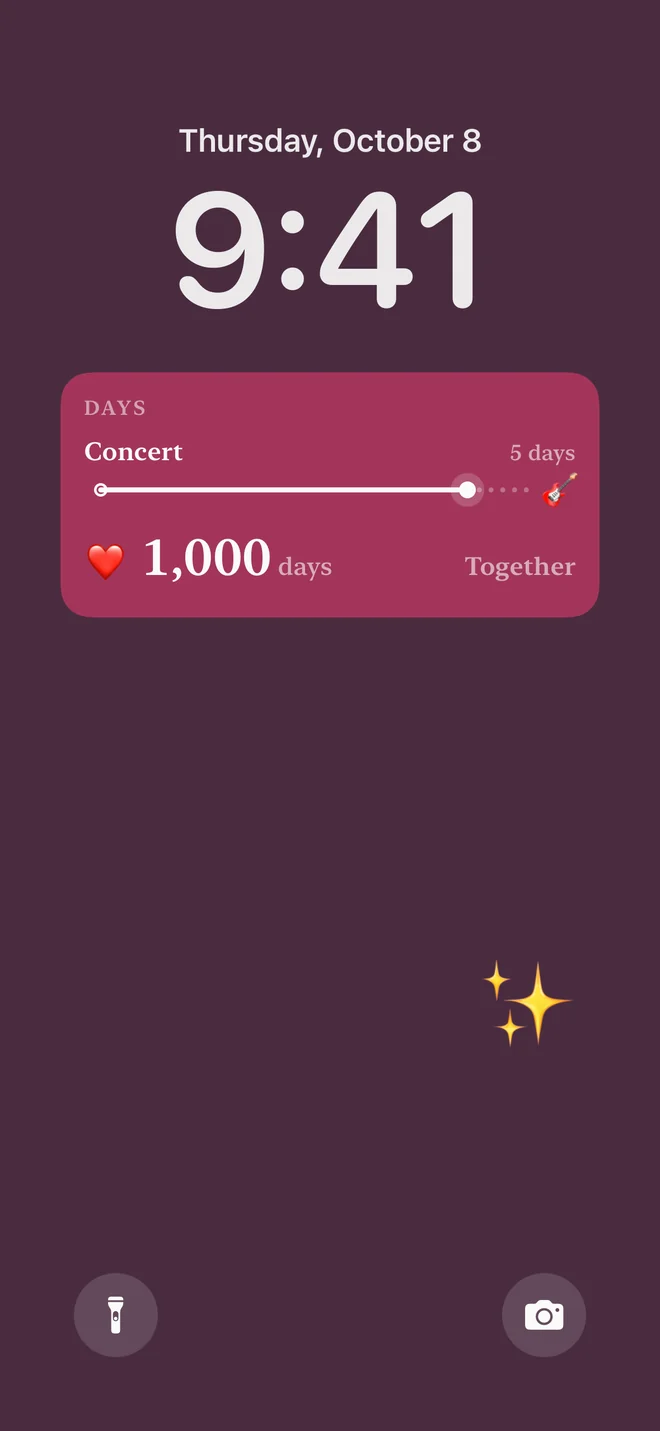
A warm sand wallpaper with today's calendar and a note: You've got this. A midnight blue wallpaper counting down 12 days to Lisbon. A waterfall photo wallpaper with calendar events, an instant photo and playful emoji.
A fresh start. Every morning.One setup with Apple Shortcuts.

Your day is free.
Make it more yours with Pro.

Start with everything you need for today. Add Pro when you want a Lock Screen that feels even more like you.

Calpaper

Free

A little order. Every morning.

Your daily wallpaper, included.

  • Your day, togetherCalendar events and Apple Reminders lists
  • Room for the little thingsA note, the month and one countdown
  • Keep it simple. Make it readable.10 solid colors, the standard font, flexible layouts and Larger text
  • A fresh start, automaticallyDaily updates and the step-by-step setup guide

Free to download. No account needed.

Calpaper Pro

Yours for good

Your photos. Your style. Your day.

Everything in Free, plus more you.

  • A favorite photo. A different morning.Your photos, rotating albums and photo cards
  • Find your own look6 gradients, 3 more fonts, emoji and transparency
  • Count the days that matterDays since, extra countdowns and a matching Home Screen
  • Yours, down to the detailsApp icons, accent colors and wordmark removal

One purchase. No subscription.

Try every wallpaper style in the app’s preview for free. Unlock Pro to use Pro styles on your actual wallpaper.

Bought Calpaper before it became free? Pro is already yours.

You also get two exclusive OG app icons. Look for Early supporter in Settings → Calpaper Pro, or tap Restore purchase with the Apple Account you used to buy it.

The things that matter.
Right where you look.

Lift your phone. There’s your day.

Your Lock Screen, with Calpaper
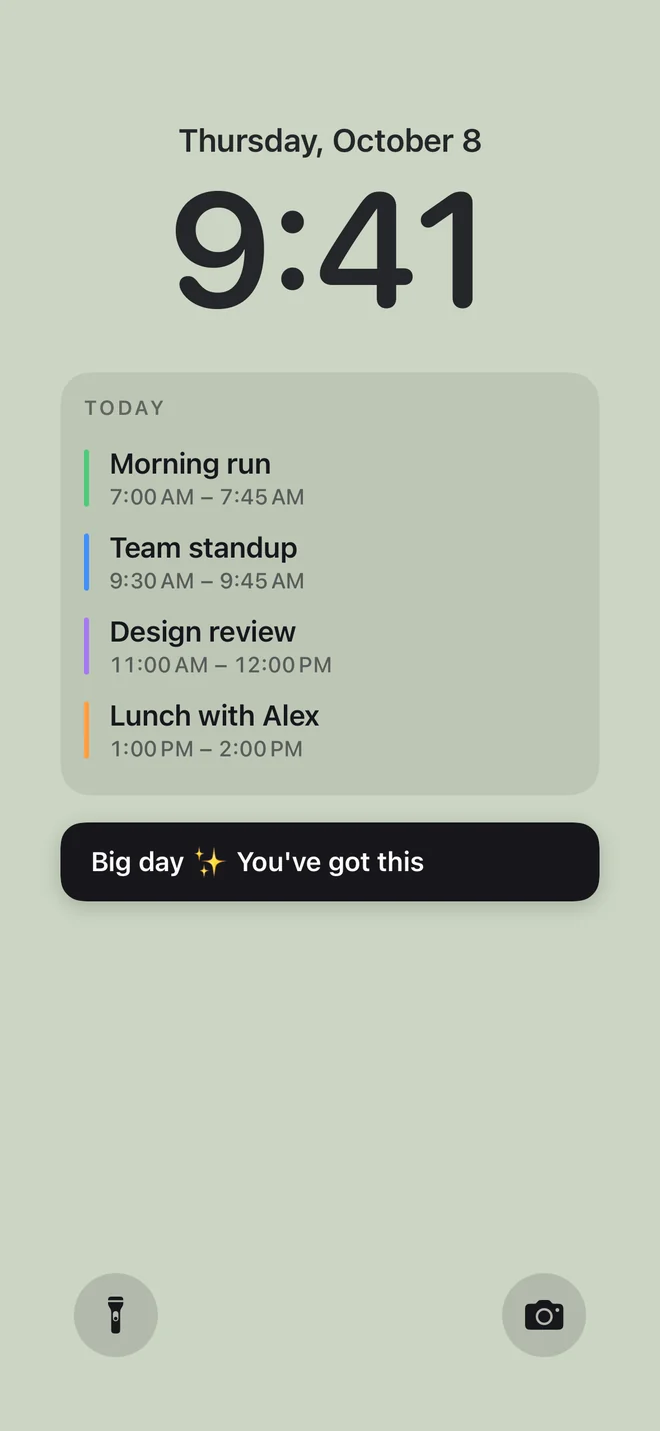
A sage green Lock Screen showing today's run, team standup, design review and lunch.
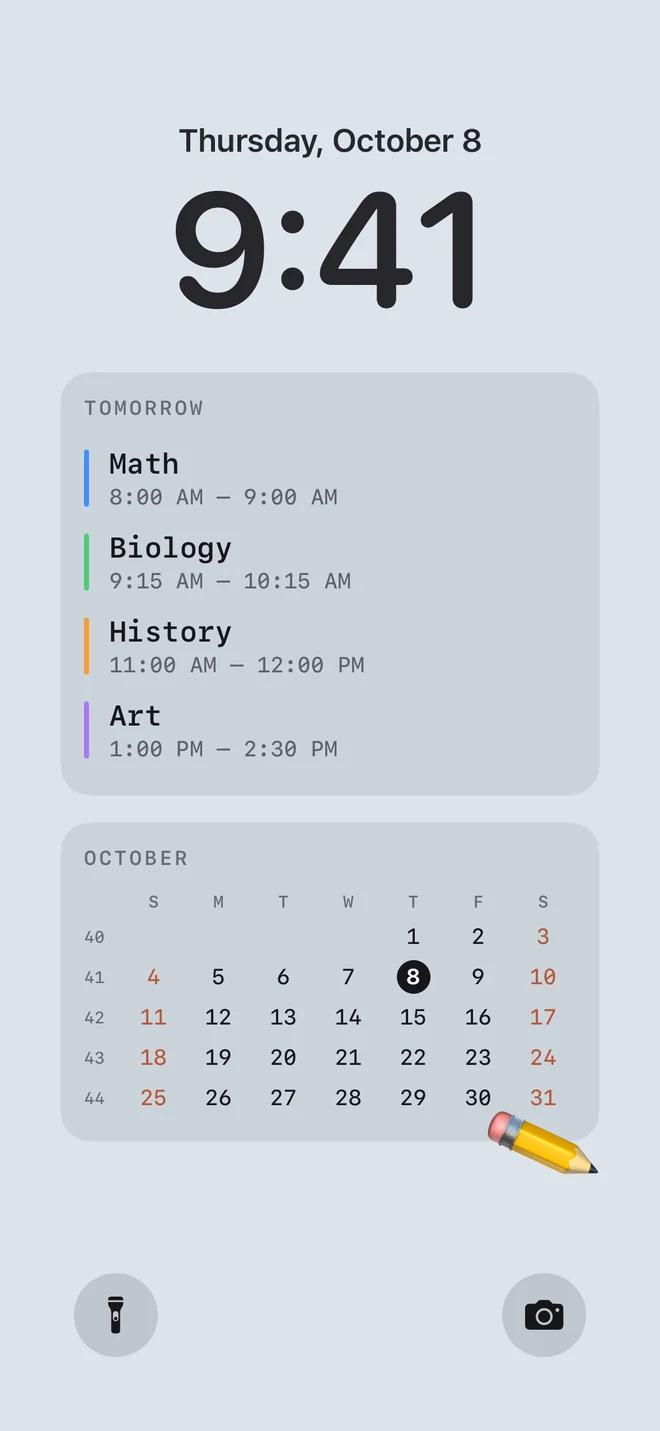
Real wallpapers made with Calpaper. Sample content and Pro styles shown.

Useful can be
beautifully yours.

A calm color. A two-color gradient. Your favorite photos taking turns each morning. Arrange your day in Canvas, Content and Look; fonts and emoji now live together in Look.

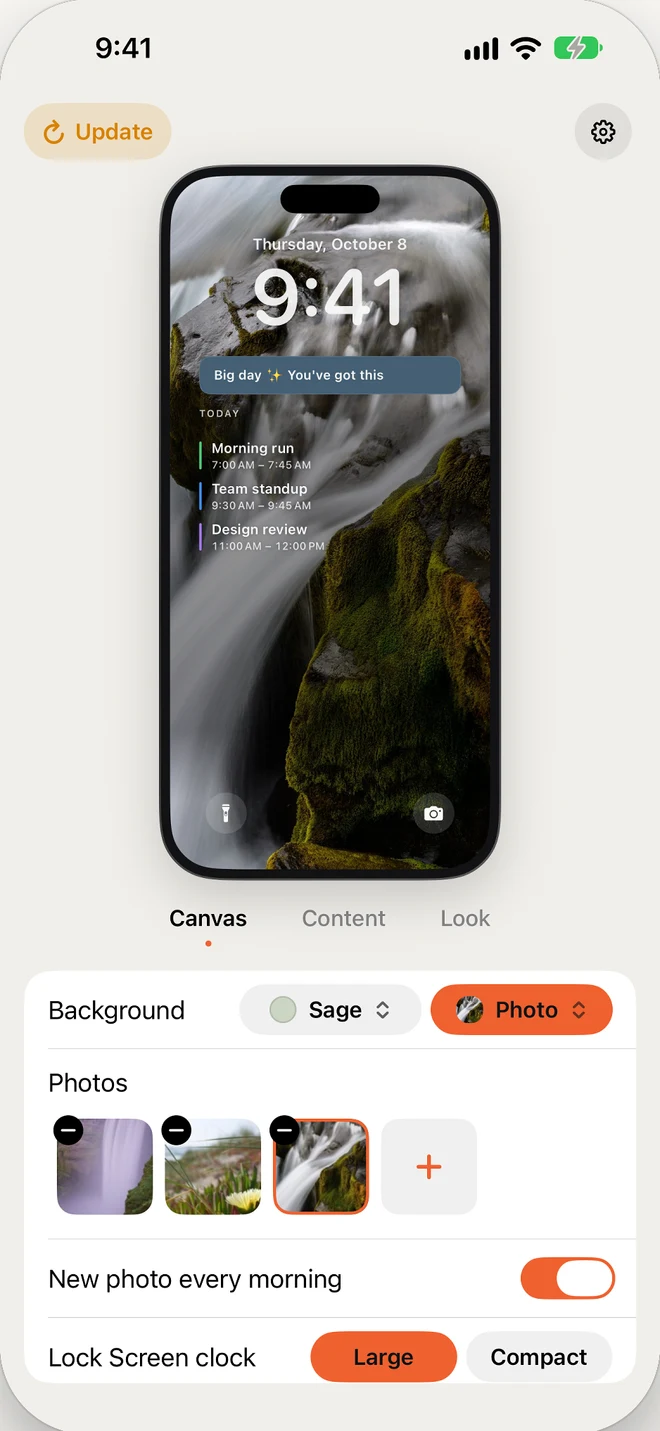
Calpaper 1.4's Canvas editor with three photos, New photo every morning turned on, and Canvas, Content and Look steps.
The photo album in Calpaper 1.4. Calpaper Pro shown.

A new morning.
A favorite photo.

Add up to ten photos in Canvas and turn on New photo every morning. Calpaper takes turns, giving each day a different backdrop. Photo backgrounds and albums come with Calpaper Pro.

Prefer color? Choose from six gradients with Pro, or keep any of the ten solid colors for free. A photo card can be small or large, with an instant-photo frame and your own caption.

Carry the same background onto your Home Screen, with nothing under your icons. Pro can also remove the Calpaper wordmark and change the app icon and accent color.

Set up a matching Home Screen
06:00
Today’s CalpaperA fresh Lock Screen
Ready before you are.

Wake up to
a fresh page.

Connect Calpaper to Apple Shortcuts once. Your iPhone redraws your wallpaper at the time you choose, every day.

Plans changed after breakfast? Tap Update in Calpaper to bring your Lock Screen up to date. If setup needs attention, the pill says Check and opens the checklist.

Want to know if a morning is missed? After your first wallpaper, you can allow a single local notification when no update has run for 26 hours. Tap it to open the checklist. No marketing notifications.

Let’s set up your mornings

Set it once.
Then let it do its thing.

Choose your look in Calpaper first. Then import the ready-made shortcut and follow the same guide you’ll find in the app. Five steps on iOS 27; ten on iOS 18–26.

For iOS 18–26

  1. 01Give Calpaper its own wallpaper

    Open Settings → Wallpaper → Add New Wallpaper. Pick a plain one, tap Add, then Set as Wallpaper Pair.

    Calpaper replaces this wallpaper’s photo each morning. A separate wallpaper keeps your other ones safe.

  2. 02Add the shortcut

    In Calpaper’s setup guide, tap Add Shortcut, then tap Add Shortcut again in Shortcuts. You can also add the ready-made Calpaper shortcut here.

    It arrives named Calpaper, with Get Today’s Calpaper and Set Wallpaper Photo already connected. Show Preview and Crop to Subject are off. If you removed Shortcuts, reinstall it first.

  3. 03Open it

    In Shortcuts, hold the Calpaper tile and tap Edit.

    A tap runs it. Holding it opens the menu.

  4. 04Choose Calpaper’s wallpaper

    In Set Wallpaper Photo, tap Current and pick the wallpaper you added.

    Don’t leave it on Current: that would replace whichever wallpaper happens to be showing when the automation runs.

  5. 05Try it, save

    Tap ▶ and answer both permission prompts with Allow. Tap Done.

    Run it once now so the unattended morning run doesn’t stop at an unanswered permission. Keep the shortcut’s name as Calpaper.

  6. 06Go to Automation

    Tap Automation at the bottom of Shortcuts.

  7. 07Start a new automation

    Tap + in the top-right corner. If it’s your first automation, tap New Automation instead.

  8. 08Choose Time of Day

    Tap Time of Day.

  9. 09Pick when it runs

    Set 6:00 AM, or another time you prefer. Keep Daily, select Run Immediately, then tap Next.

    Run Immediately lets it refresh without asking you to confirm every morning.

  10. 10Run Calpaper

    Under My Shortcuts, tap Calpaper. Return to Calpaper’s setup guide, tap I’m Done, and choose Always Allow if asked.

    Not in the list? Tap New Blank Automation, add Run Shortcut, and choose Calpaper. Use Always Allow, not Allow Once: the morning run can’t answer a prompt.

For iOS 27

  1. 01Give Calpaper its own wallpaper

    Open Settings → Wallpaper → Add New Wallpaper. Pick a plain one, tap Add, then Set as Wallpaper Pair.

    Calpaper replaces this wallpaper’s photo each morning. A separate wallpaper keeps your other ones safe.

  2. 02Add the shortcut

    In Calpaper’s setup guide, tap Add Shortcut, then tap Add Shortcut again in Shortcuts. You can also add the ready-made Calpaper shortcut here.

    It arrives named Calpaper, with Get Today’s Calpaper and Set Wallpaper Photo already connected. Show Preview and Crop to Subject are off. If you removed Shortcuts, reinstall it first.

  3. 03Open it

    In Shortcuts, hold the Calpaper tile and tap Edit.

    A tap runs it. Holding it opens the menu.

  4. 04Turn it on, point it

    Tap the circled › by 6:00 and turn Automation on. Tap Wallpaper, pick the one you added, and tap ✓.

    The shared automation arrives switched off. Once on, it runs every day at 6:00. Pick a wallpaper explicitly: a manual run can ask you to choose one, but the morning run cannot.

  5. 05Try it, save

    Tap ▶ and answer both permission prompts with Allow. Tap ‹ to save. Return to Calpaper’s setup guide, tap I’m Done, and choose Always Allow if asked.

    Don’t skip the first run: unanswered permissions stop the morning update. Use Always Allow, not Allow Once, when Calpaper asks to output the wallpaper.

Tomorrow morning is sorted.

Your wallpaper will refresh at your chosen time. Want to change its look? Open Calpaper, make it yours, and tap Update.

A few little
details.

Need a hand? Visit support

Does it update throughout the day?

Your wallpaper is a snapshot, refreshed by Shortcuts at the time you choose. If your calendar or Reminders change, tap Update in Calpaper to refresh it now.

Why do I need Apple Shortcuts?

iOS doesn’t let apps change your wallpaper on their own. Shortcuts can. Calpaper makes the image, and the ready-made shortcut sets it as your wallpaper. Import it once, choose your wallpaper, and enable the daily automation.

Which Apple Reminders appear?

Choose your lists in Content → Reminders and allow access. Calpaper shows open reminders due today first, then overdue ones, then undated ones. Complete a reminder in Apple Reminders and it disappears at the next wallpaper update. Lines you typed in Calpaper before v1.3 move into Reminders when you first allow access.

Is Calpaper Pro a subscription?

No. The daily wallpaper is free, and Calpaper Pro is one purchase. Photos, gradients, extra fonts, emoji, transparency, more countdowns, alternate icons and accents, wordmark removal and a matching Home Screen come with Pro. Check the app for your local price. There are no ads or accounts.

I bought Calpaper before it was free. Do I pay again?

No. Pro stays unlocked on the Apple Account that bought Calpaper, with two exclusive OG icons for early supporters. Settings → Calpaper Pro should say Early supporter. If it doesn’t, tap Restore purchase while using that Apple Account.

How do I add a matching Home Screen?

With Pro, edit your Calpaper shortcut. Set the existing Set Wallpaper Photo action to the Lock Screen. Add a second Get Today’s Calpaper action and set its Screen option to Home Screen. Follow it with a second Set Wallpaper Photo for the Home Screen, using that second action’s image. Choose your dedicated Calpaper wallpaper and keep Show Preview and Crop to Subject off. Run once and allow any prompts. You’ll get the same background with no blocks under your icons.

Why does the status say Check?

In v1.4, Check means setup hasn’t been verified or an update couldn’t find your shortcut. Tap it for the checklist. If the shortcut runs but stops before changing your wallpaper, Calpaper points you to the wallpaper-selection step instead of sending you back and forth between apps. Choose your dedicated wallpaper in Set Wallpaper Photo, then run it again.

Can Calpaper tell me if a morning is missed?

Yes. After your first successful wallpaper, Calpaper offers an optional missed-morning notice. If you allow notifications, one local notice fires 26 hours after the last run unless another run replaces it. Tap it to open the checklist. It isn’t a daily reminder or a marketing notification.

Can I use it without calendar access?

Yes. In v1.4, the morning update still draws your reminders, note and month when calendar access is off. Calendar and Reminders permissions are optional. The update also keeps the last known reminders if Apple Reminders is slow to respond.

Where are the emoji controls now?

In Look, under the fonts. The editor now has three steps: Canvas for the background and clock, Content for the blocks, and Look for fonts, placement, transparency and emoji.

Which languages can I use?

English, Spanish, Portuguese, German, French, Italian, Japanese, Korean, Traditional Chinese, Simplified Chinese and Turkish. Each includes the app, the Shortcuts guide and the dates on your wallpaper.

What else is improved in v1.4?

The morning update uses the correct photo for the new day, the date rolls over at midnight, and reading your calendar no longer holds up the editor. An event with missing dates won’t stop the update. Photo cards now have two sizes, small and large; an existing medium card becomes large. You can update your free wallpaper without dismissing a Pro alert.

Where do my calendar, reminders and photos go?

They stay on your iPhone. Calpaper draws your wallpaper on your device, with no account. Anonymous usage stats are optional and never include your calendar, reminders, notes or photos. If you opt in, stats can include Pro purchase, restore and cancellation events. Read the privacy policy.

Can I make the text easier to read?

Yes. Turn on Larger text in Calpaper’s Look step. It’s included for free. The app also supports VoiceOver, Dynamic Type and Reduce Motion.
Make your next glance
a good one.

Download on the App Store